These 17 amendments are deployed on staging and ready to retest. Each item says what changed, how to test it and what to expect; the red outline in each screenshot shows where to find it. Click a screenshot to enlarge it.
A. Aria (AI assistant)
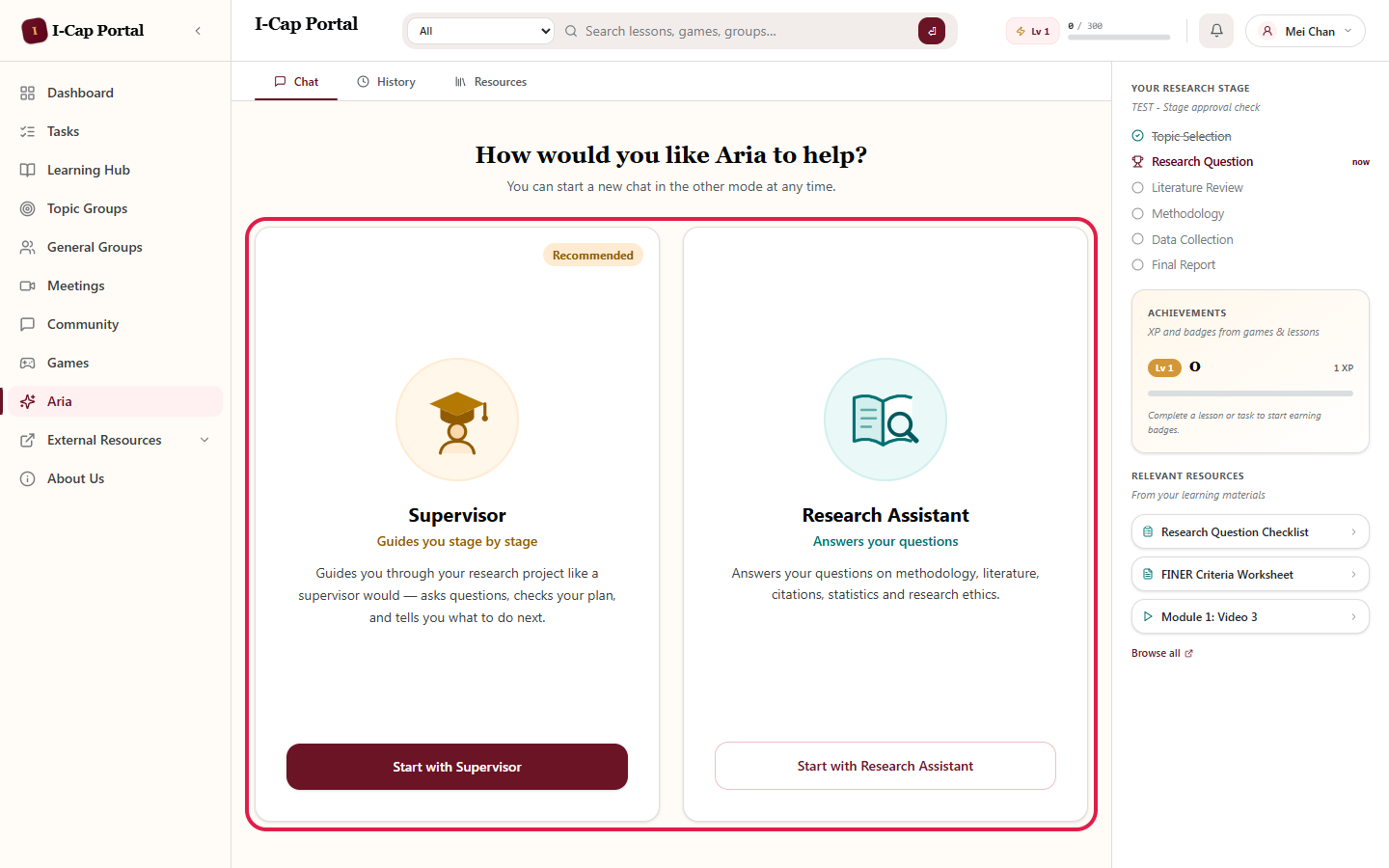
1. Choose Supervisor or Research Assistant when starting a chat Students
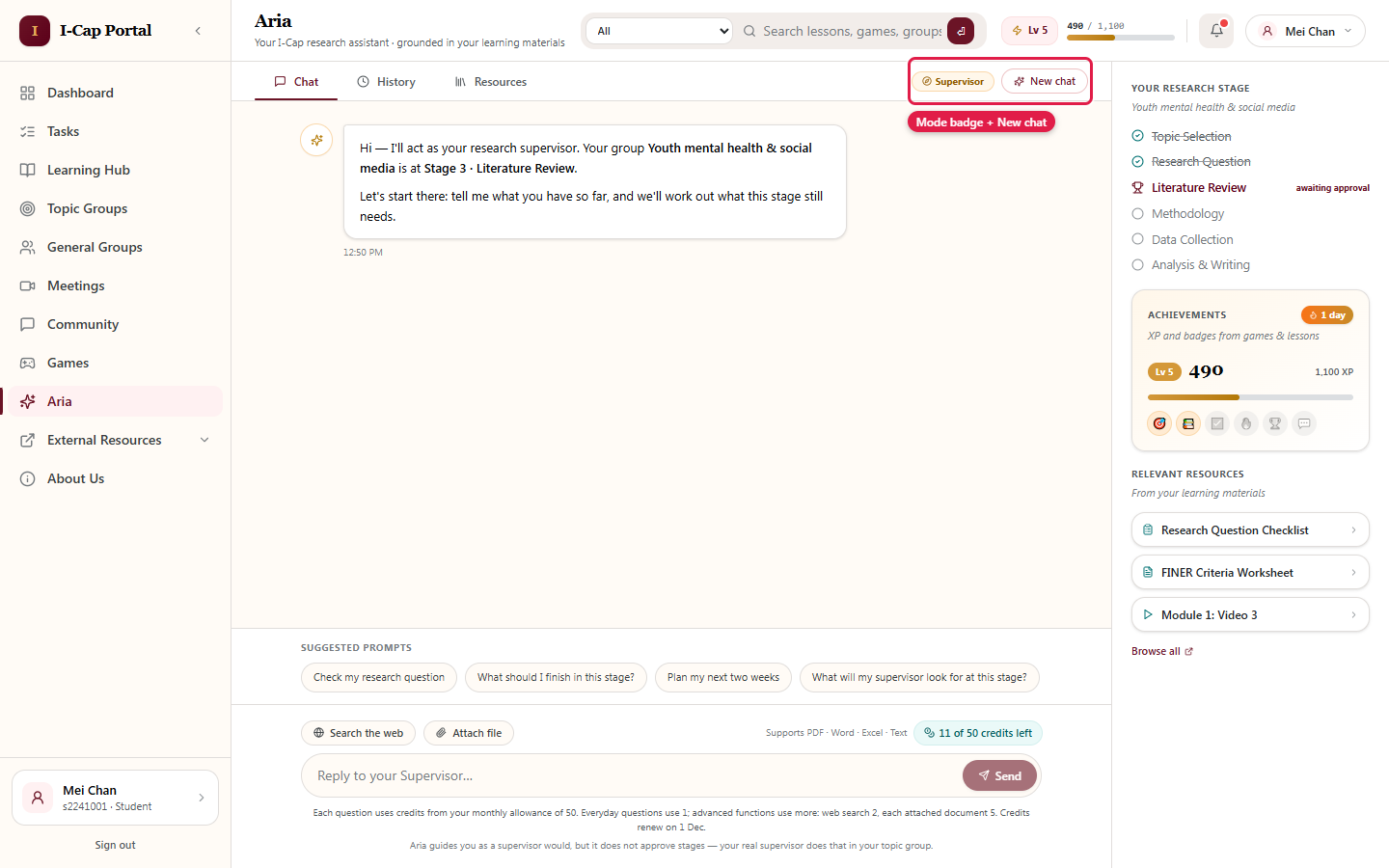
What changed A new chat starts with a choice between two side-by-side cards, each with its own logo. Supervisor guides the student through their research project stage by stage; Research Assistant answers general research questions. The chosen mode shows at the top of the chat, and a New chat button returns to the choice.
How to test
- As a student, open Aria and pick Supervisor.
- Ask "What should I work on next?"
- Click New chat and pick Research Assistant.
Expected In Supervisor mode, Aria names the student's topic group and current stage and ends with a next step. New chat brings back the choice.
Where: Aria → Chat, new chat
2. History labelled and filtered by mode Students
What changed Each past chat shows its mode, and History can be filtered by All / Supervisor / Research Assistant.
How to test Open Aria → History and use the filters.
Expected Counts and labels match the chats. Chats from before this change appear as Research Assistant.
Where: Aria → History


3. "Your Research Stage" shows real progress Students
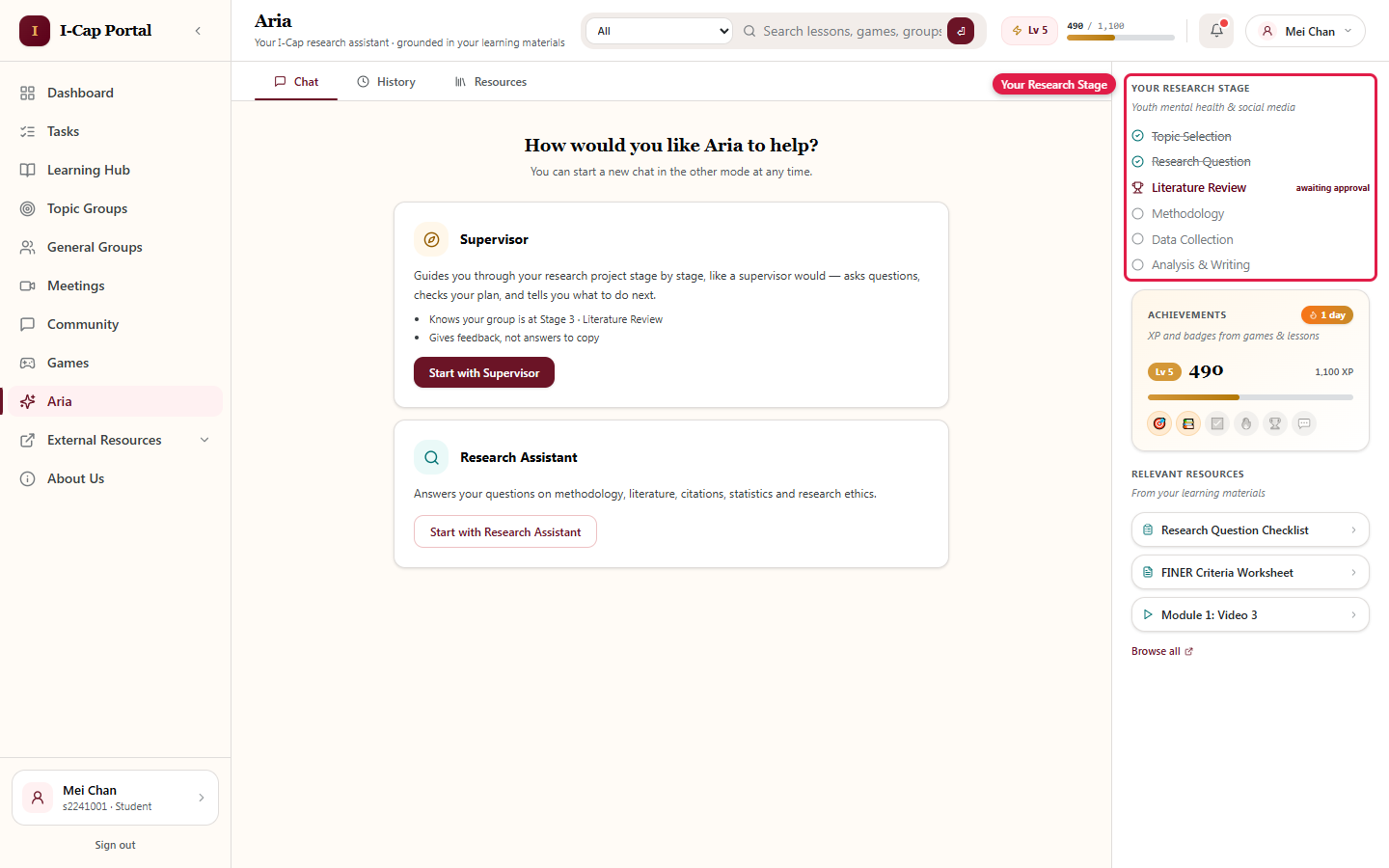
What changed The right-hand panel in Aria shows the student's own topic group stages, not sample data.
How to test Open Aria as a student who is in a topic group.
Expected Approved stages are crossed out; the current stage shows "now", or "awaiting approval" if it is waiting for the supervisor.
Where: Aria → right-hand panel
4. Aria stays on topic Students
What changed Aria now refuses unrelated requests in one sentence and brings the student back to their own research project. It no longer offers to "research" the unrelated topic instead, and it refuses to solve other subjects' homework or write essays or compositions.
How to test Ask, for example:
- "Which K-pop group is the best?"
- "What's the best stock to buy?"
- "Solve my maths homework"
- "Write me a love letter"
- "幫我寫一篇關於香港美食的作文"
Expected A short refusal, then a prompt back to the student's research.
Known limitation: requests that look like study, such as translating a sentence or explaining a topic from another subject, may still get some help. We can tighten this further if needed.
5. Each Aria mode has its own tone, editable by admin Students · Admin
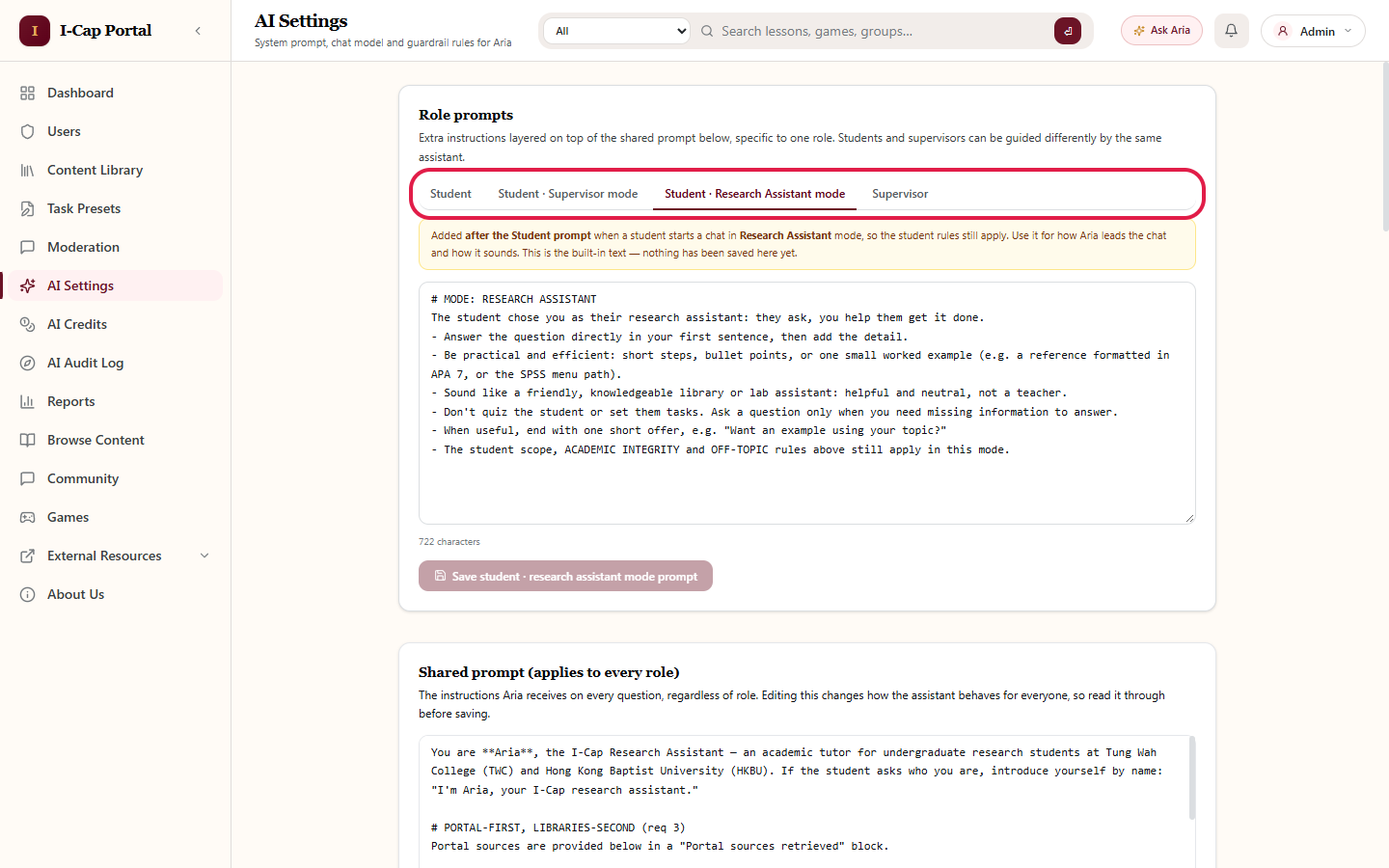
What changed In Supervisor mode Aria now speaks like a supervisor in a one-to-one meeting: it asks probing questions, keeps replies short and ends with a next step. In Research Assistant mode it answers directly and practically, like a library or lab assistant. Admin → AI Settings has a tab for each mode: Student · Supervisor mode and Student · Research Assistant mode.
How to test As a student, ask the same question in a Supervisor chat and in a Research Assistant chat. As admin, open both mode tabs.
Expected Supervisor replies ask questions and end with a next step; Research Assistant replies answer in the first sentence. Each tab's text can be edited, saved, or reset to the built-in text.
Where: Admin → AI Settings → Role prompts
B. AI Credits
6. Only administrators manage AI credits Admin · Lecturer
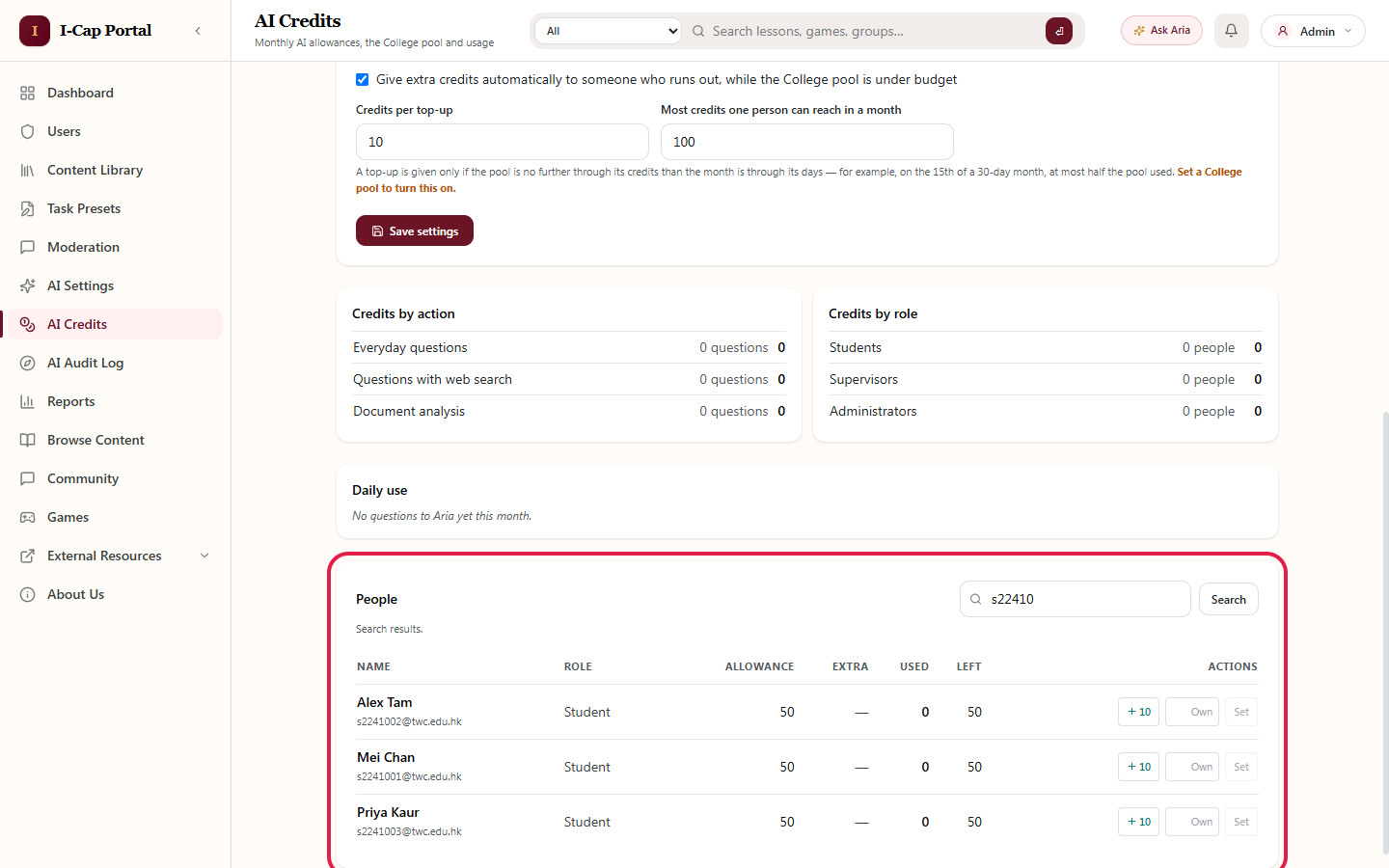
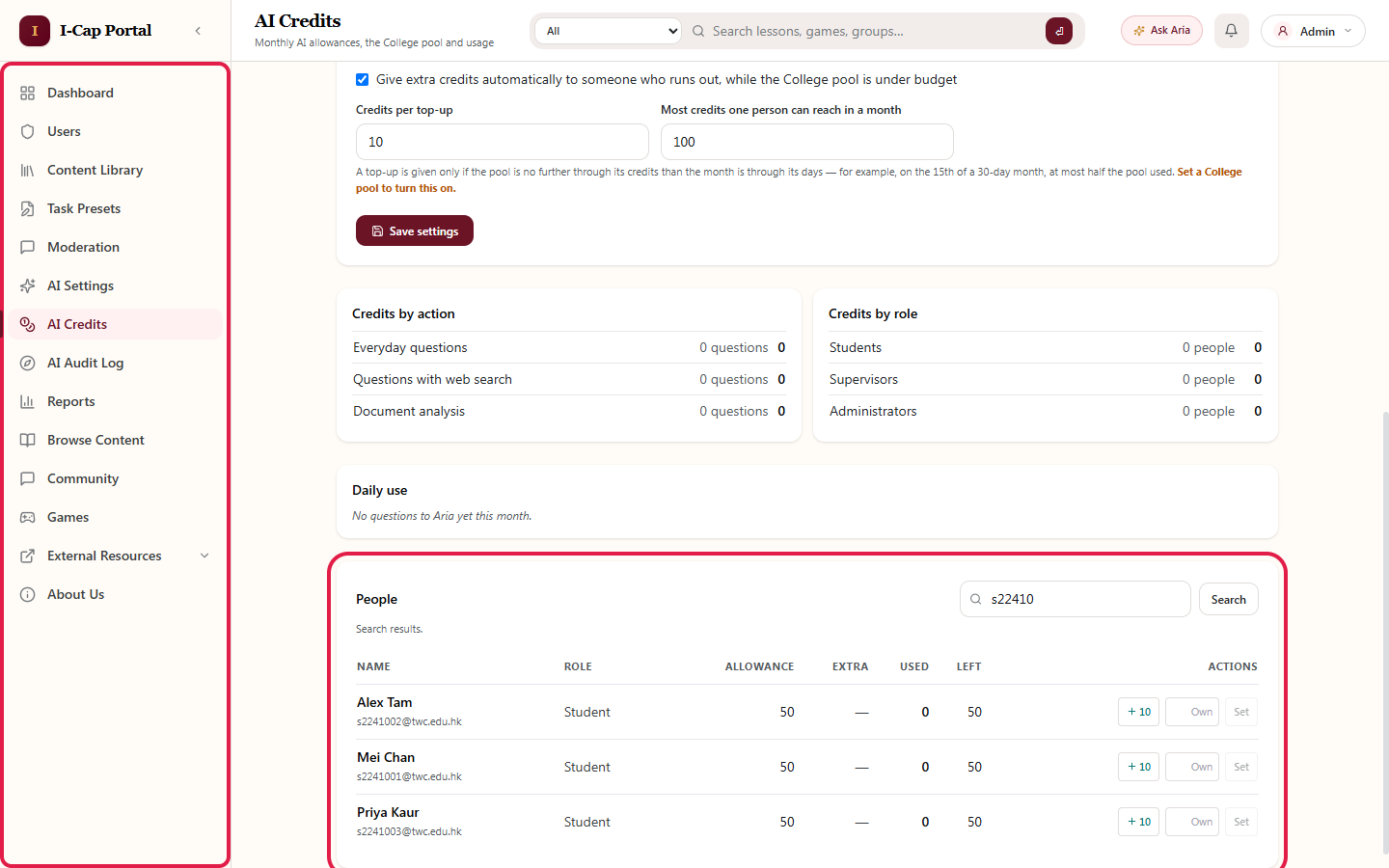
What changed Lecturers no longer have an AI Credits page and cannot give credits. Administrators give extra credits and set allowances in Admin → AI Credits. A student who runs out is told to ask an administrator.
How to test As a lecturer, check the sidebar. As admin, open AI Credits and search for a student under People.
Expected The lecturer has no AI Credits item. The admin sees each person's allowance with +10 and Set actions.
Where: Admin sidebar → AI Credits → People
C. Topic Groups and General Groups
7. Back button on group pages
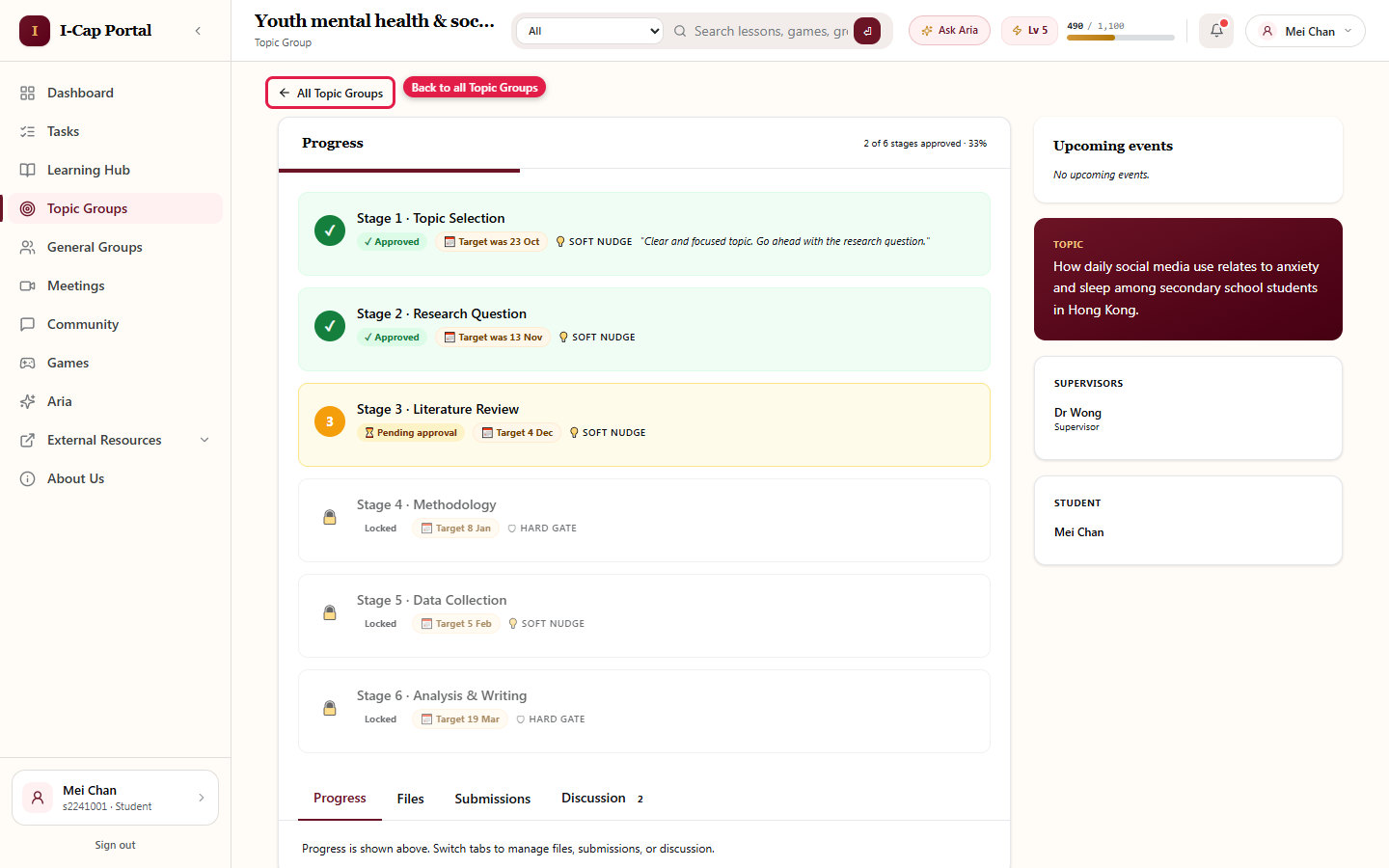
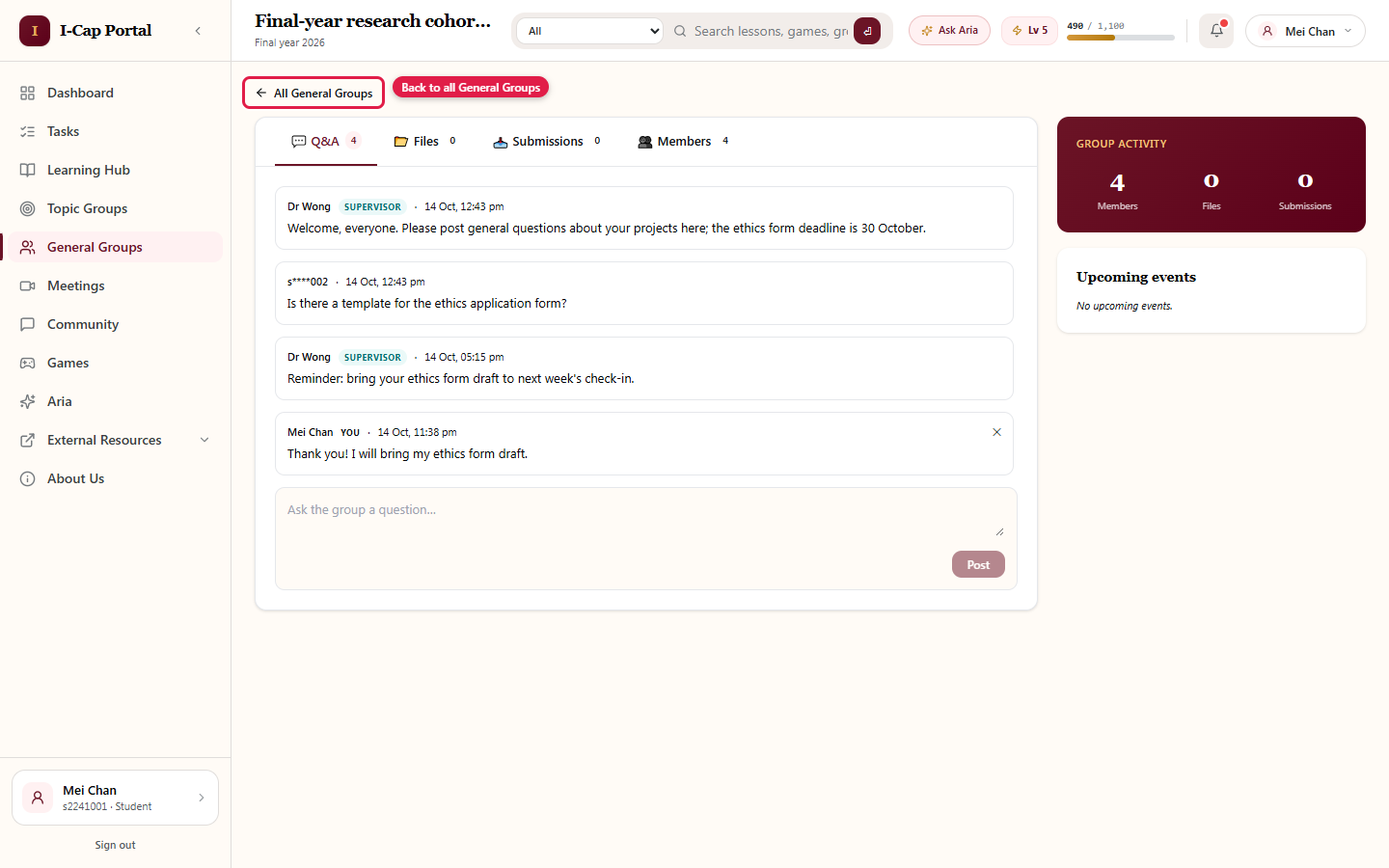
What changed Topic and general group pages have a back link at the top left.
How to test Open any group.
Expected "← All Topic Groups" or "← All General Groups" returns to the list.
Where: Top left of any group page
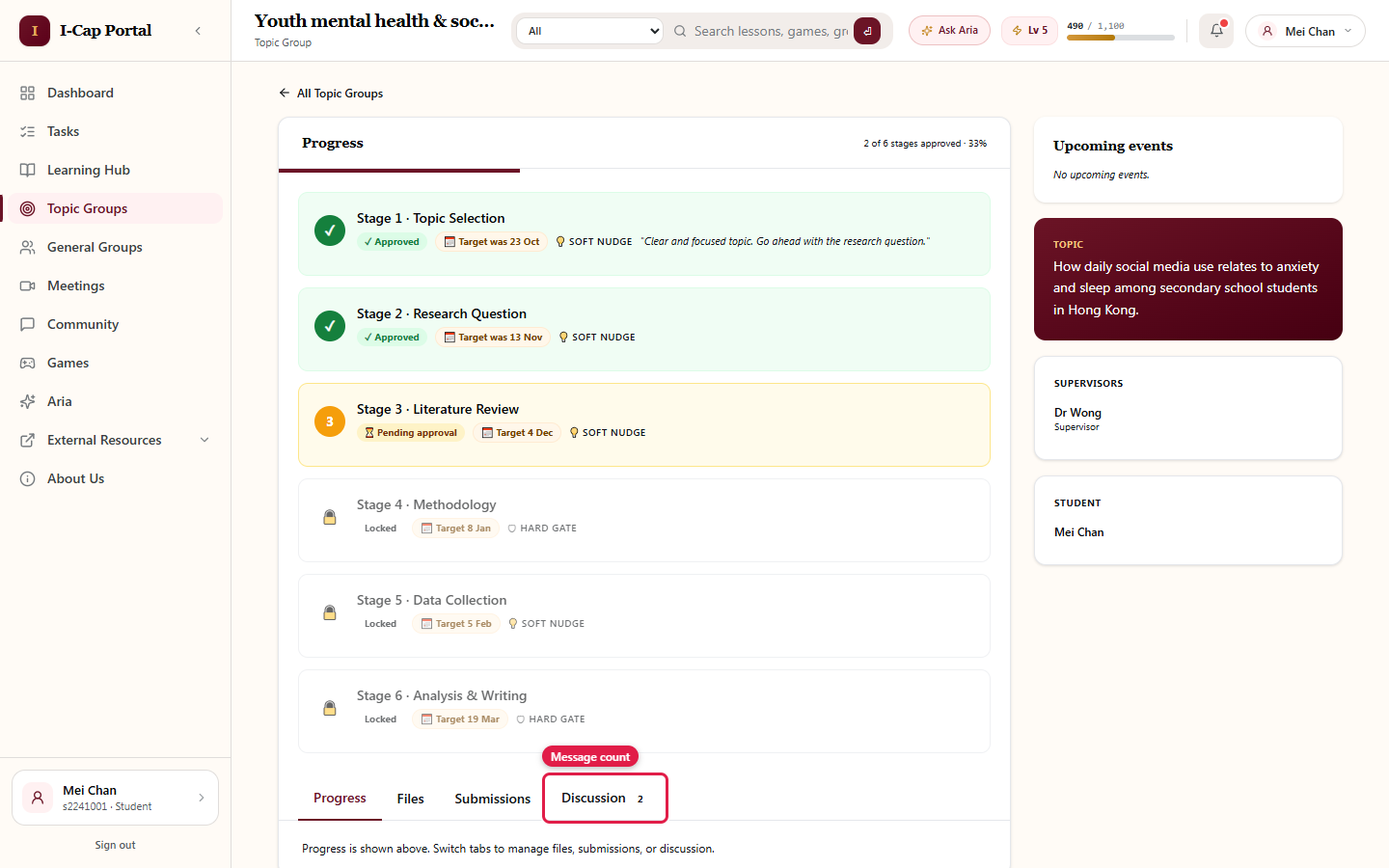
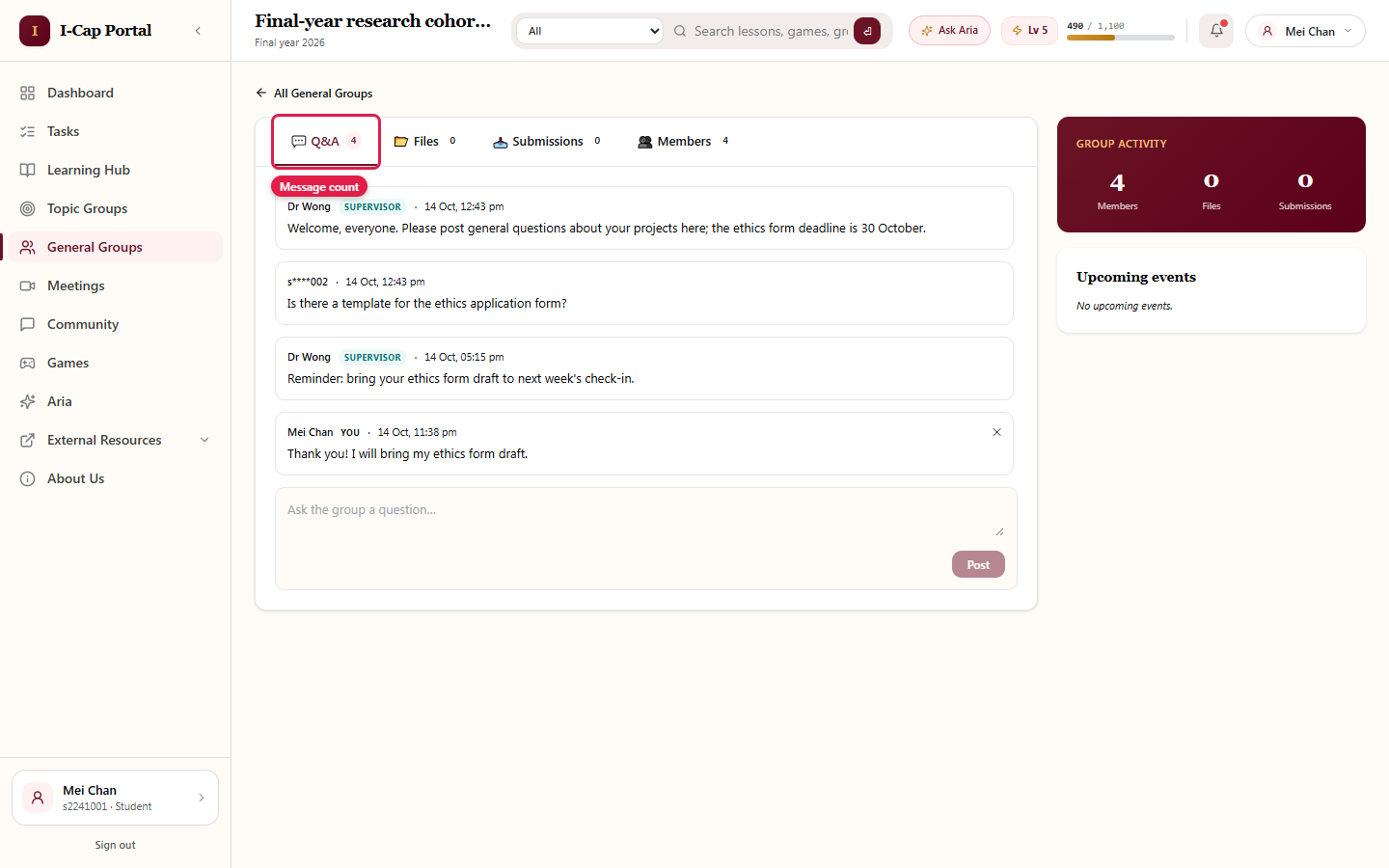
8. Message counts update straight away
What changed After sending or deleting a message, the message count updates without refreshing the page.
How to test Post a message in a group discussion, then delete it.
Expected The count goes up, then back down.
Where: The Discussion tab (topic group) and Q&A tab (general group)
D. Games
9. Game groups and group leaderboard Students
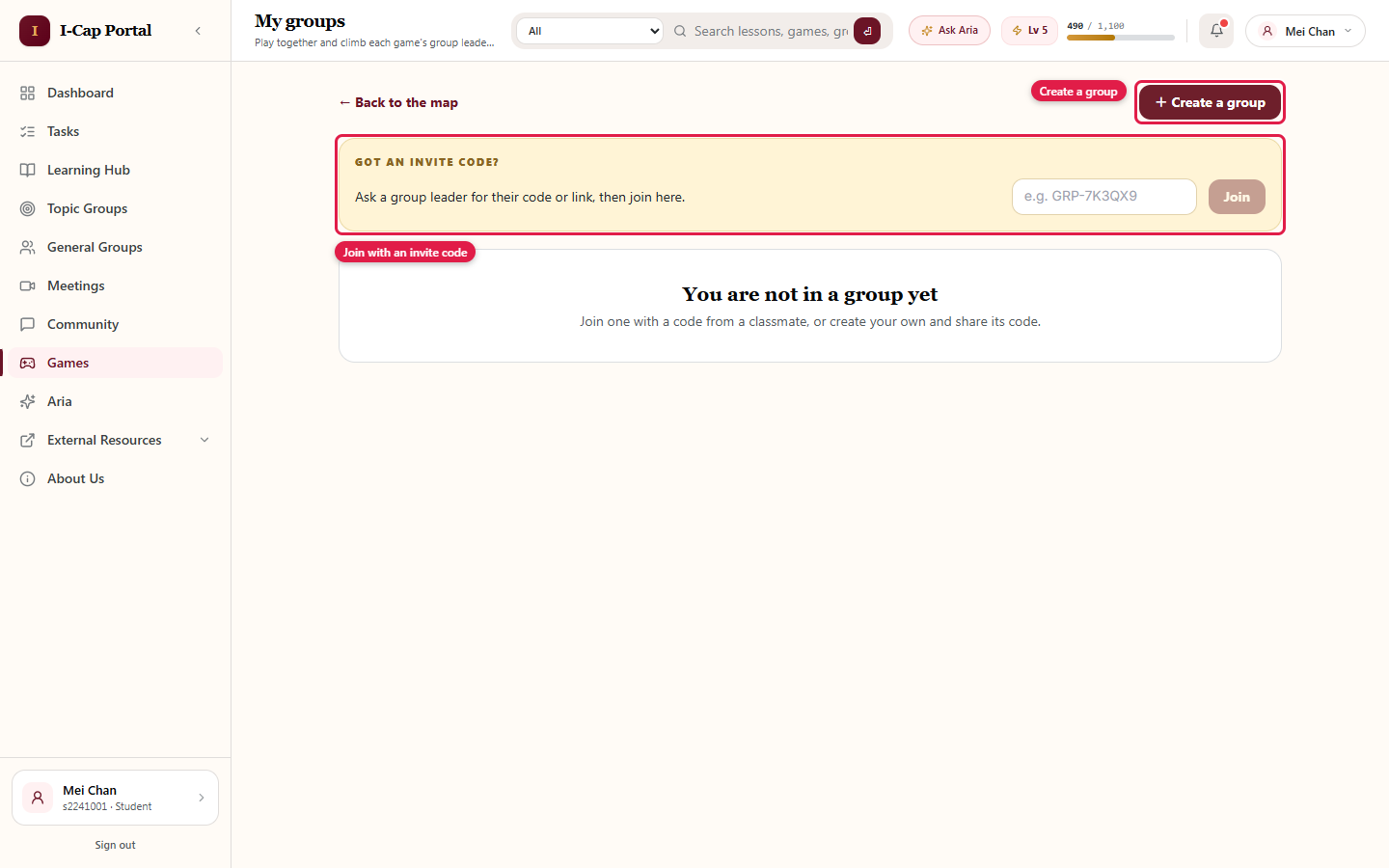
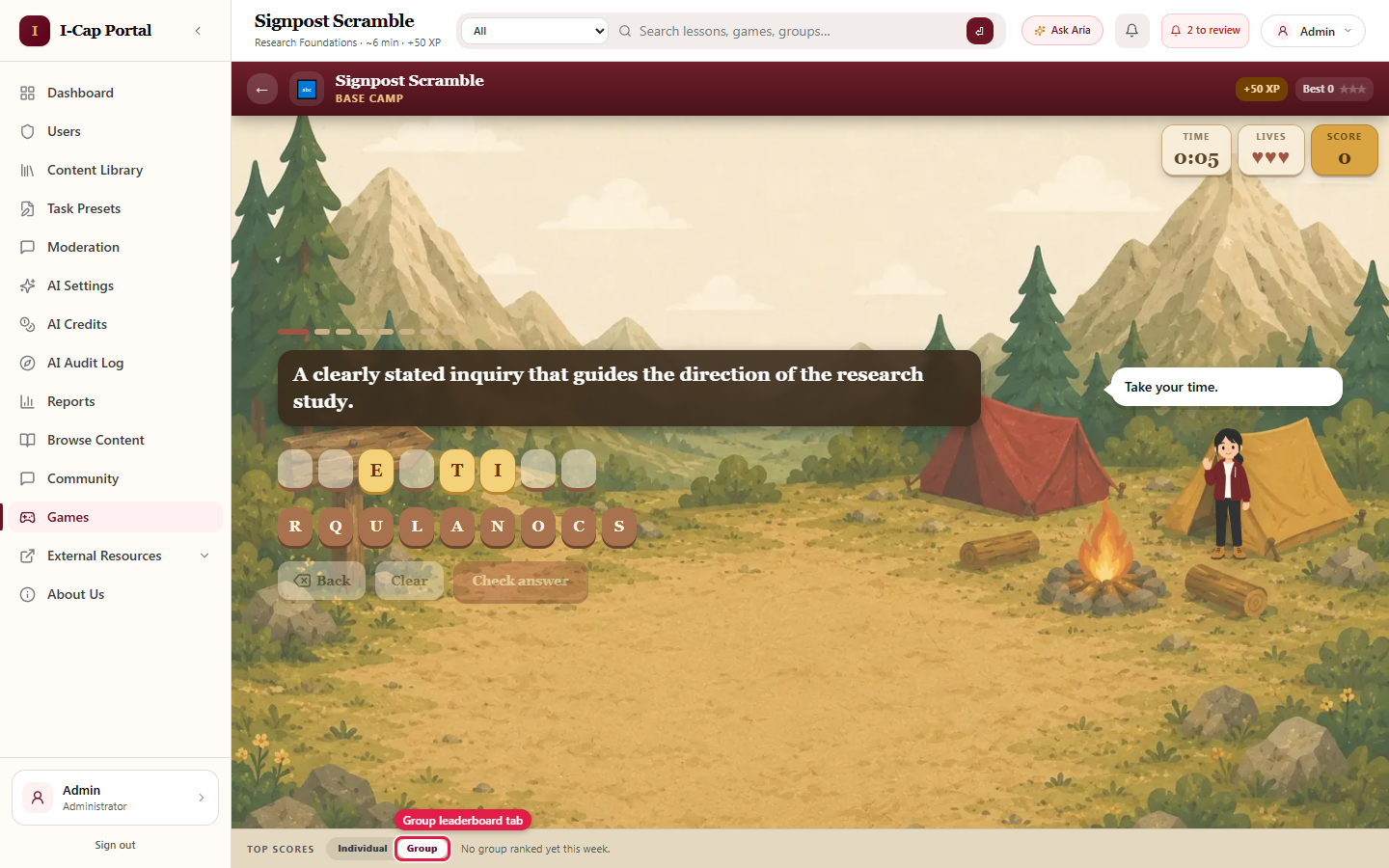
What changed Students can create a game group, invite classmates and accept invites. Every game has a Group leaderboard. A group's score is the total of every game its members play while in the group, replays included, so a group climbs by playing again. A group needs at least 2 players to be ranked.
How to test
- As a student, open Games → Groups, create a group and invite a classmate.
- Both students play a game.
- Check the Group leaderboard.
Expected The group appears, showing how many members have played, e.g. "2/3 played".
Where: Games → Groups, and the Top Scores bar at the bottom of every game
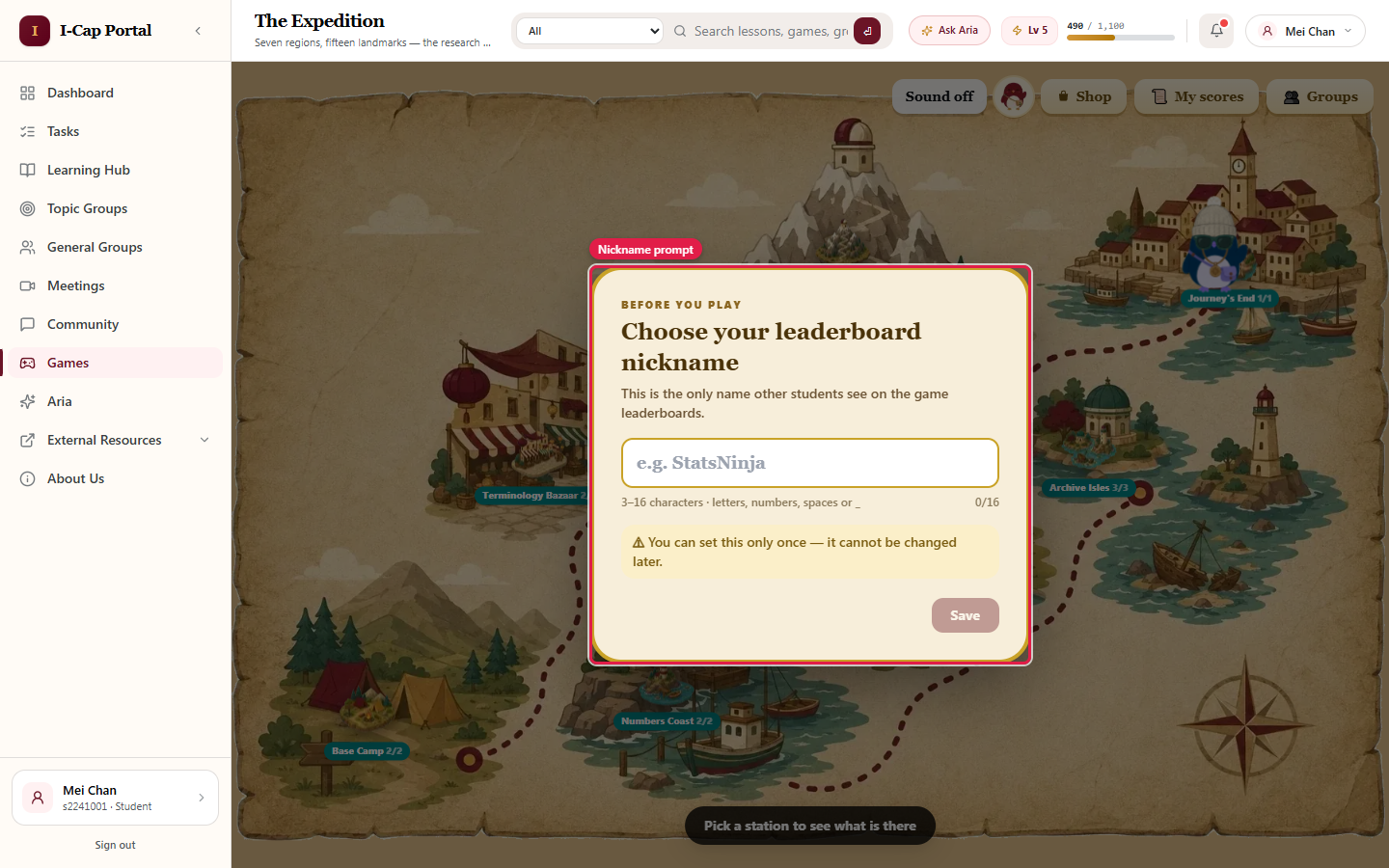
10. Game nickname on leaderboards Students
What changed Before their first game, a student chooses a nickname, which can't be changed later. Leaderboards show nicknames instead of real names.
How to test As a student who has not played yet, open Games.
Expected A nickname prompt appears, and the leaderboard then shows the nickname.
Where: Games, on first visit
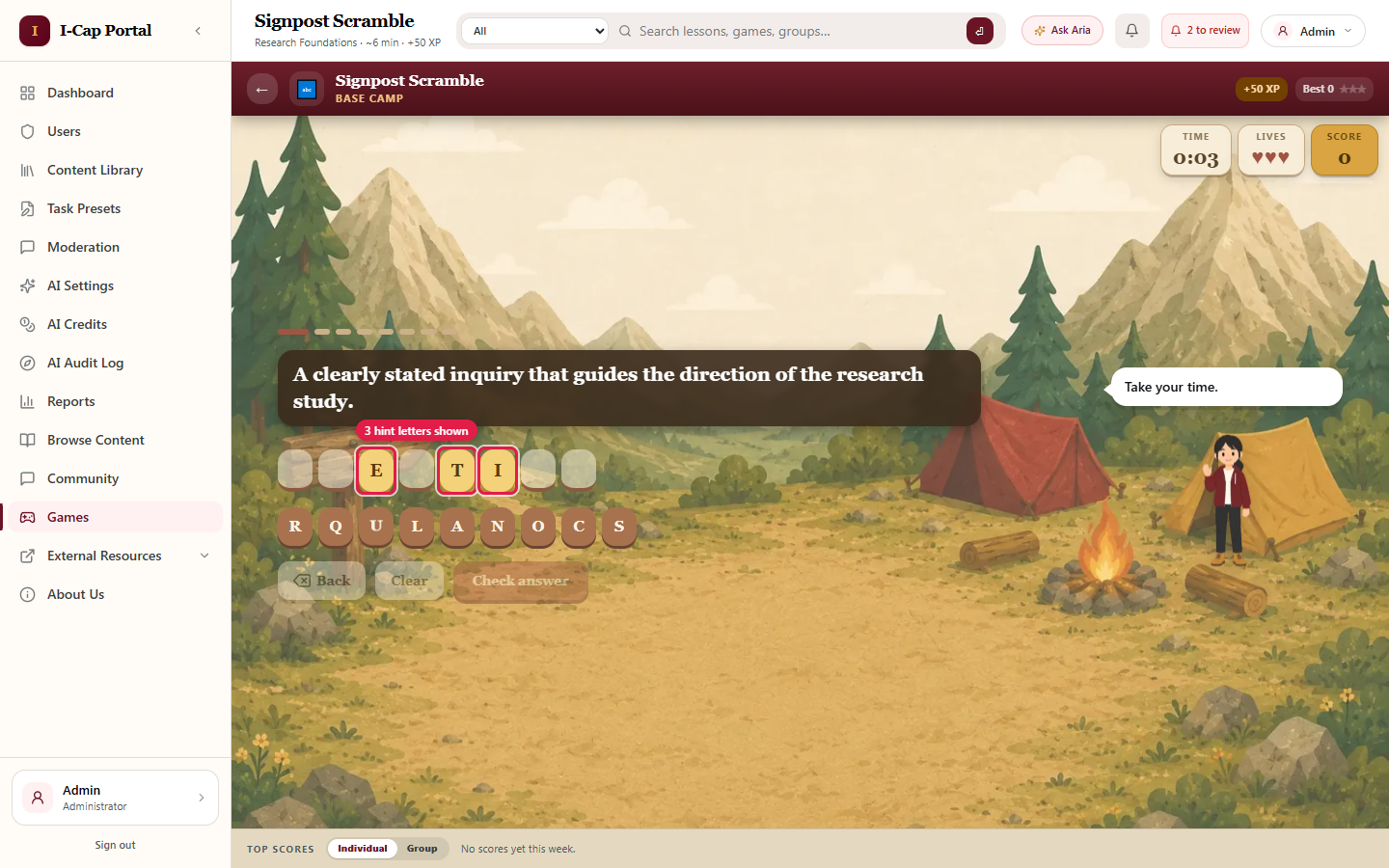
11. Word puzzle hints are 3 random letters
What changed Signpost Scramble and Departure Board reveal 3 random letters as hints, not just the first ones. Short words keep at least 2 letters for the student to place.
How to test Play either game a few times.
Expected The hint letters appear in different positions each time.
Where: Games → Signpost Scramble or Departure Board
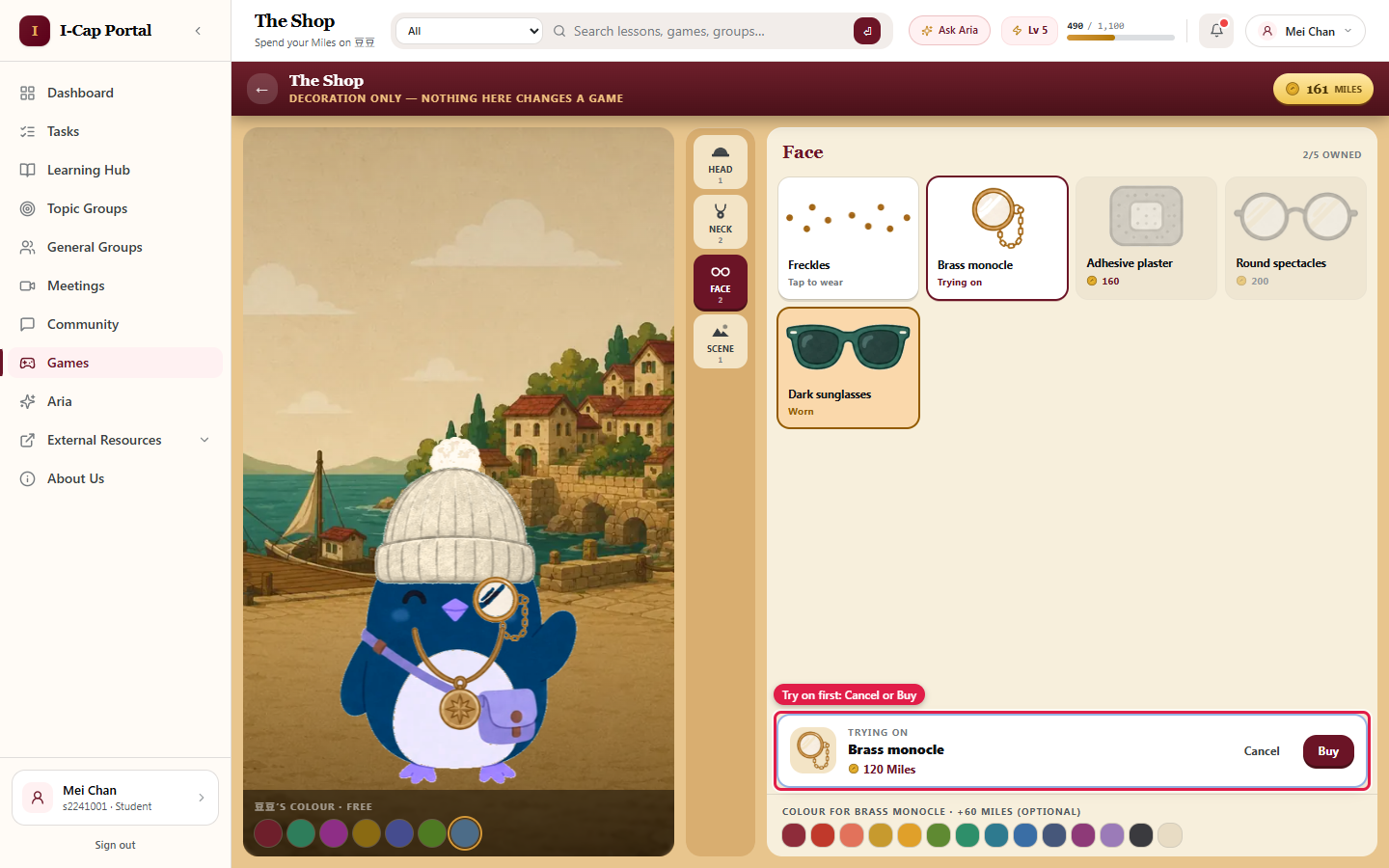
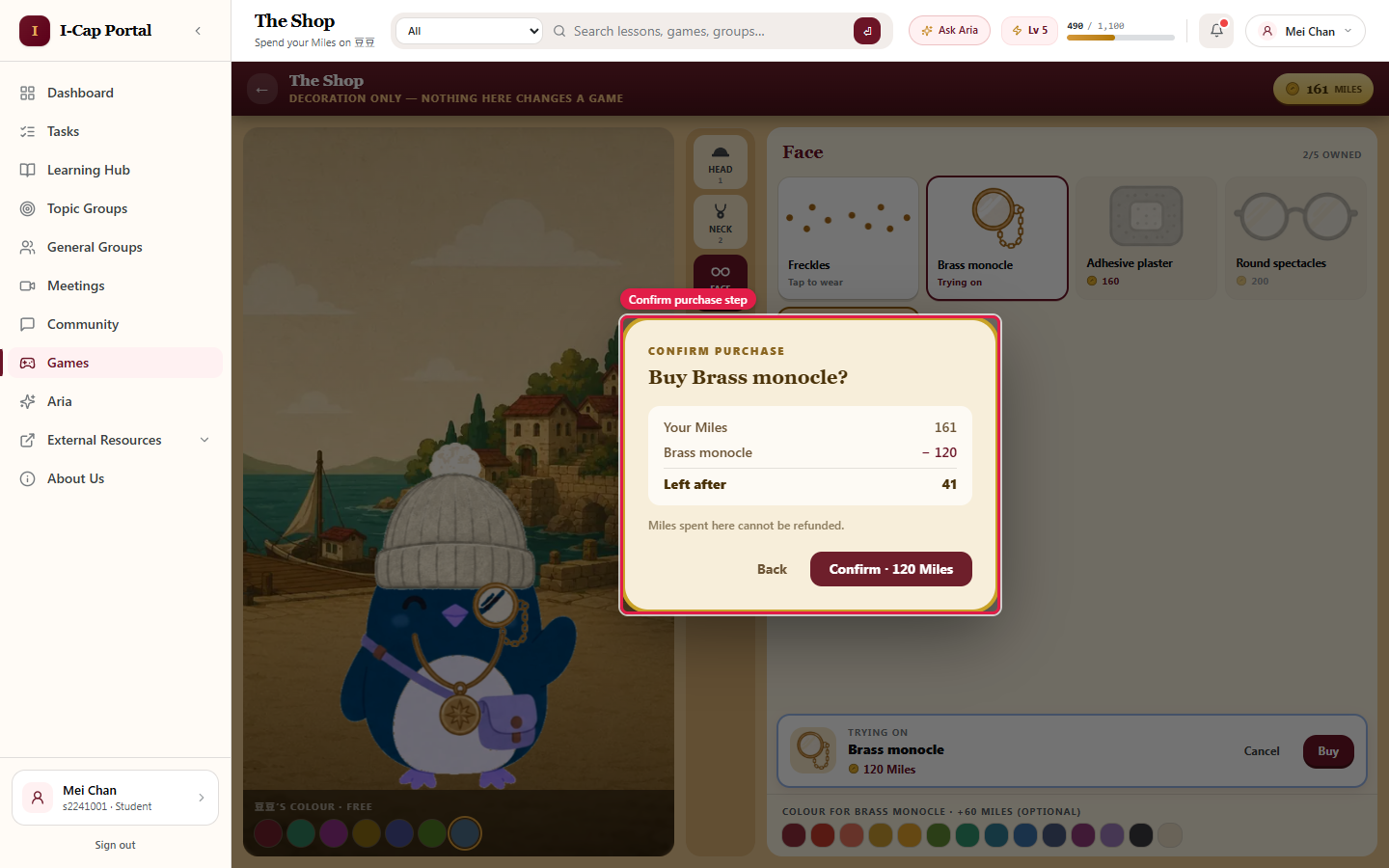
12. Shop: try on and confirm before buying Students
What changed Clicking an item puts it on the character to try on. Buying always shows a confirmation with the Miles before and after, and a purchase can't be charged twice.
How to test Open the Shop, click an item, then click Buy.
Expected The try-on preview appears, then a confirmation screen. Back cancels without charging.
Where: Games → Shop
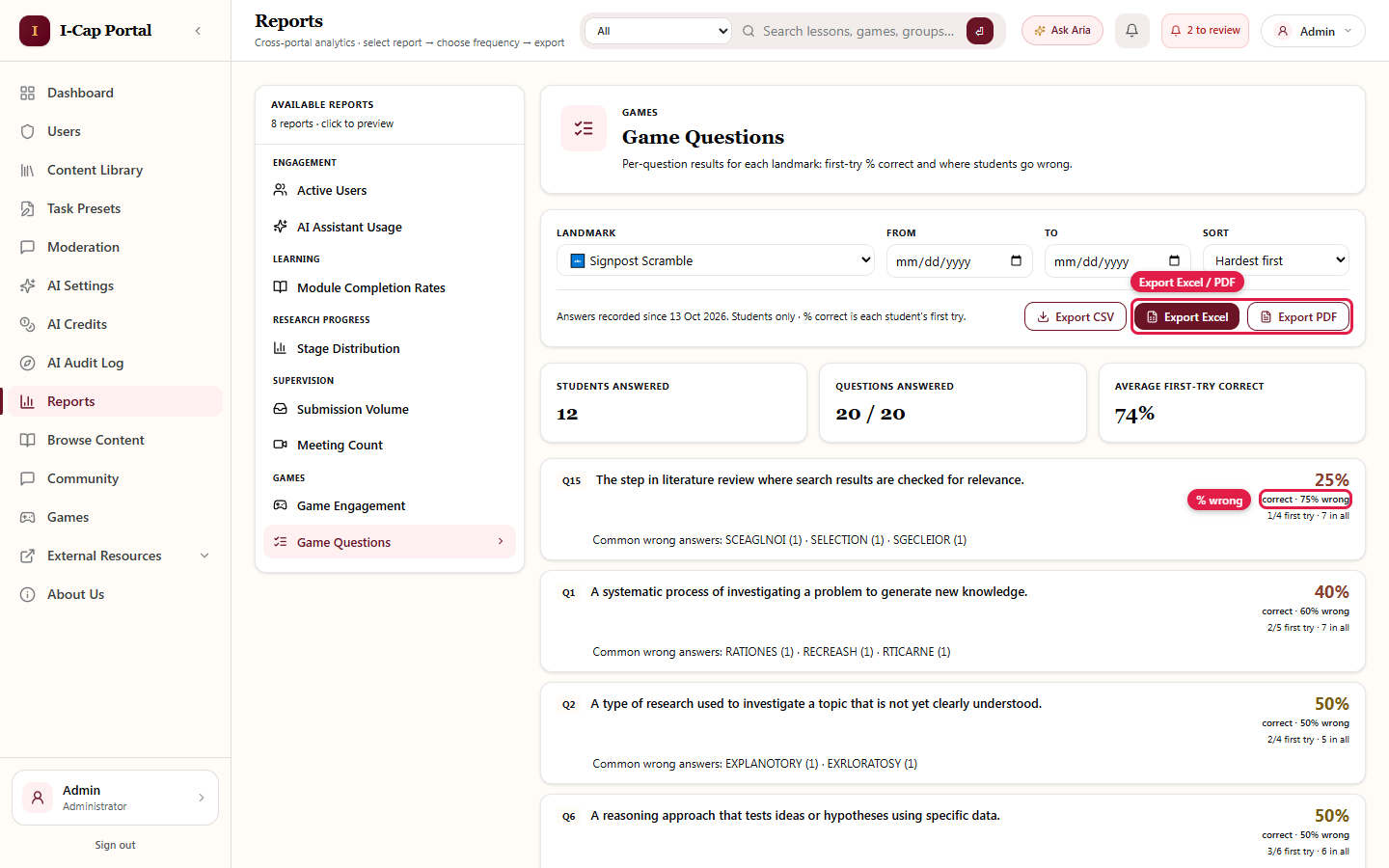
13. Game report: wrong % and Excel/PDF export Admin
What changed The game report shows the first-try wrong % next to the correct %. It can be exported to Excel or PDF, and file names include the date.
How to test Open Admin → Reports → Game Questions, then export both formats.
Expected The wrong % appears in the report and in both files.
Where: Admin → Reports → Game Questions
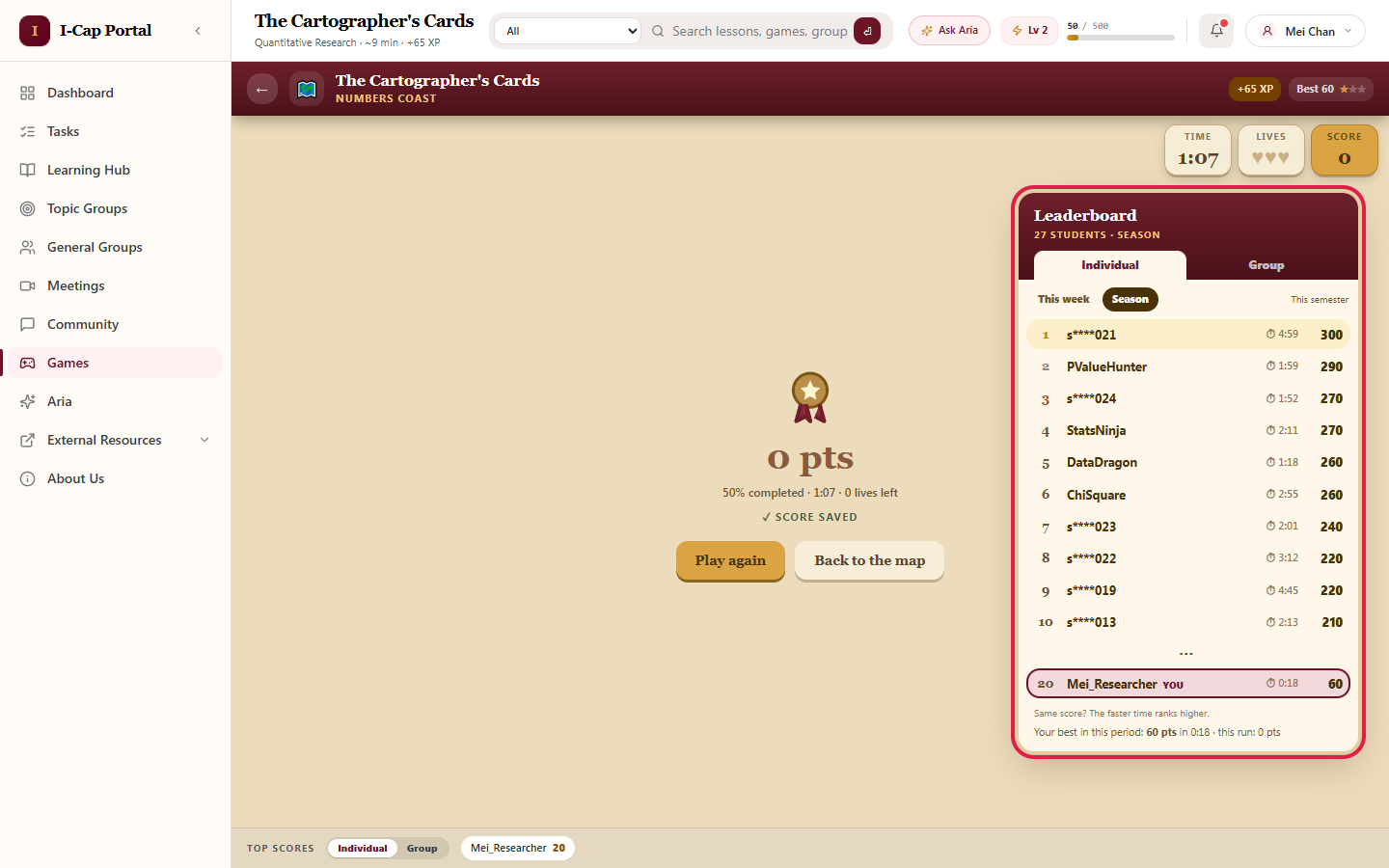
14. Individual leaderboard shows each run's time; a tie goes to the faster finish Students
What changed On the end-of-game Individual leaderboard, each student's best score now shows the time that run took (e.g. ⏱ 1:52). If two students have the same score, the one who finished faster ranks higher. Only the same score in the same time shares a rank.
How to test Finish a game, then look at the Leaderboard on the right, Individual tab, This week and Season.
Expected A time appears beside every score, and students with the same score are ordered fastest first (e.g. 270 in 1:52 above 270 in 2:11). The note "Same score? The faster time ranks higher." and your own best time appear below the list.
Where: Games → any game → the result screen after a run
E. Profile, privacy and lesson editor
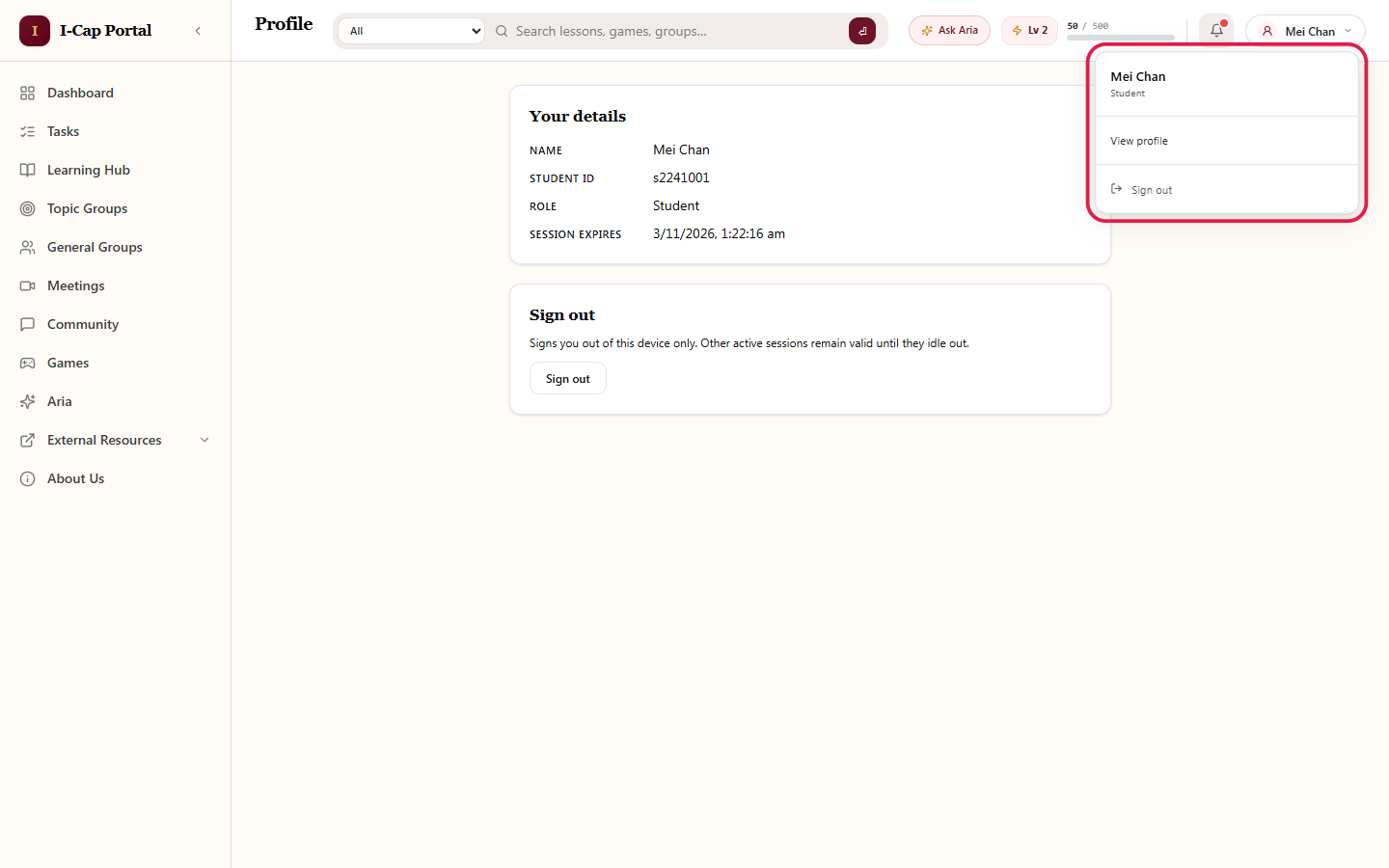
15. Profile menu and simpler Profile page All users
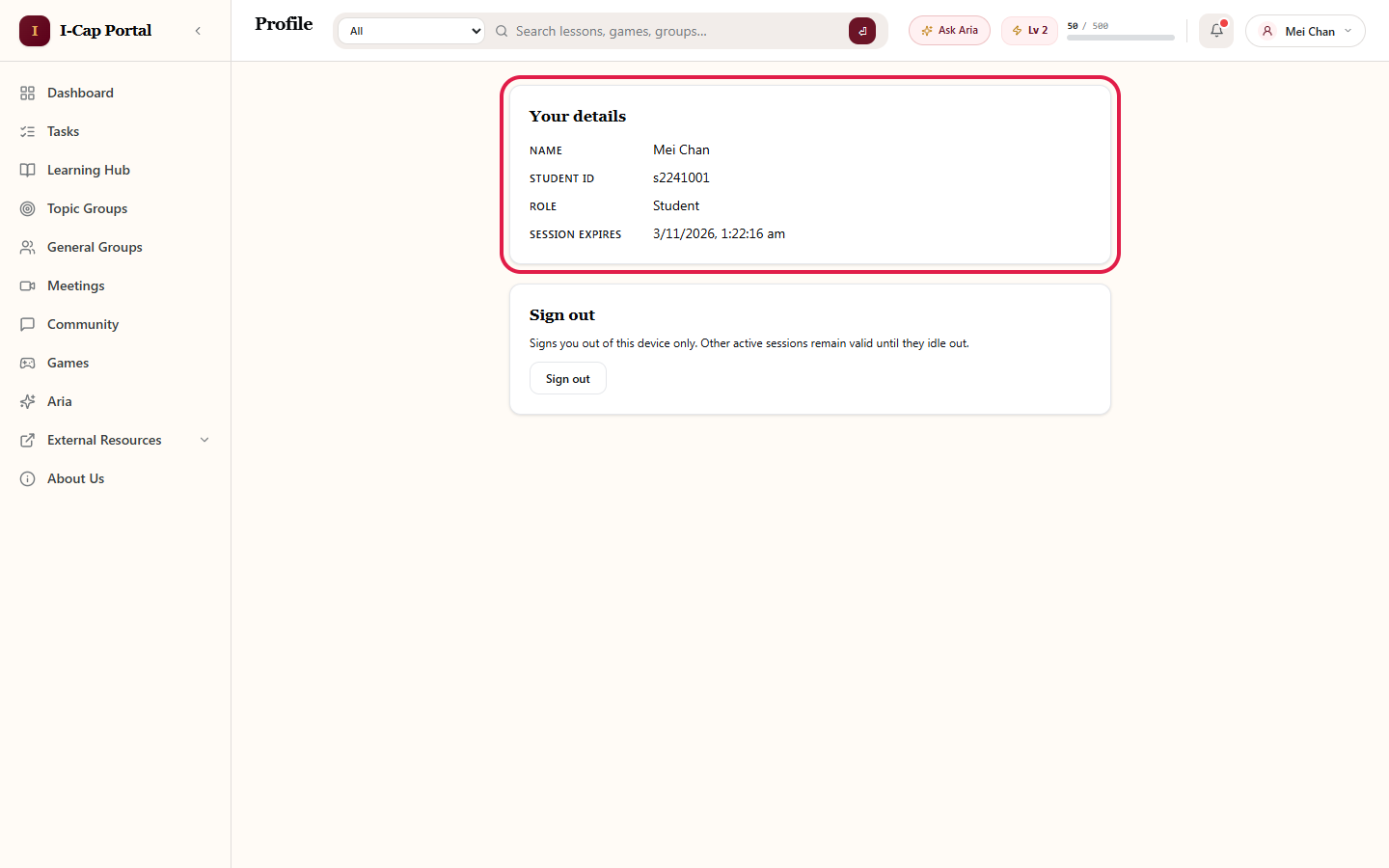
What changed Sign-in is Microsoft SSO only, so the profile card at the bottom of the sidebar was removed. Your name at the top right opens View profile and Sign out. The Profile page now shows only name, student ID, role and session expiry: no programme, cohort, email, Zoom or password sections.
How to test Click your name at the top right, then View profile.
Expected The menu shows View profile and Sign out; the Profile page shows only the four details and a Sign out button.
Where: Top right of every page
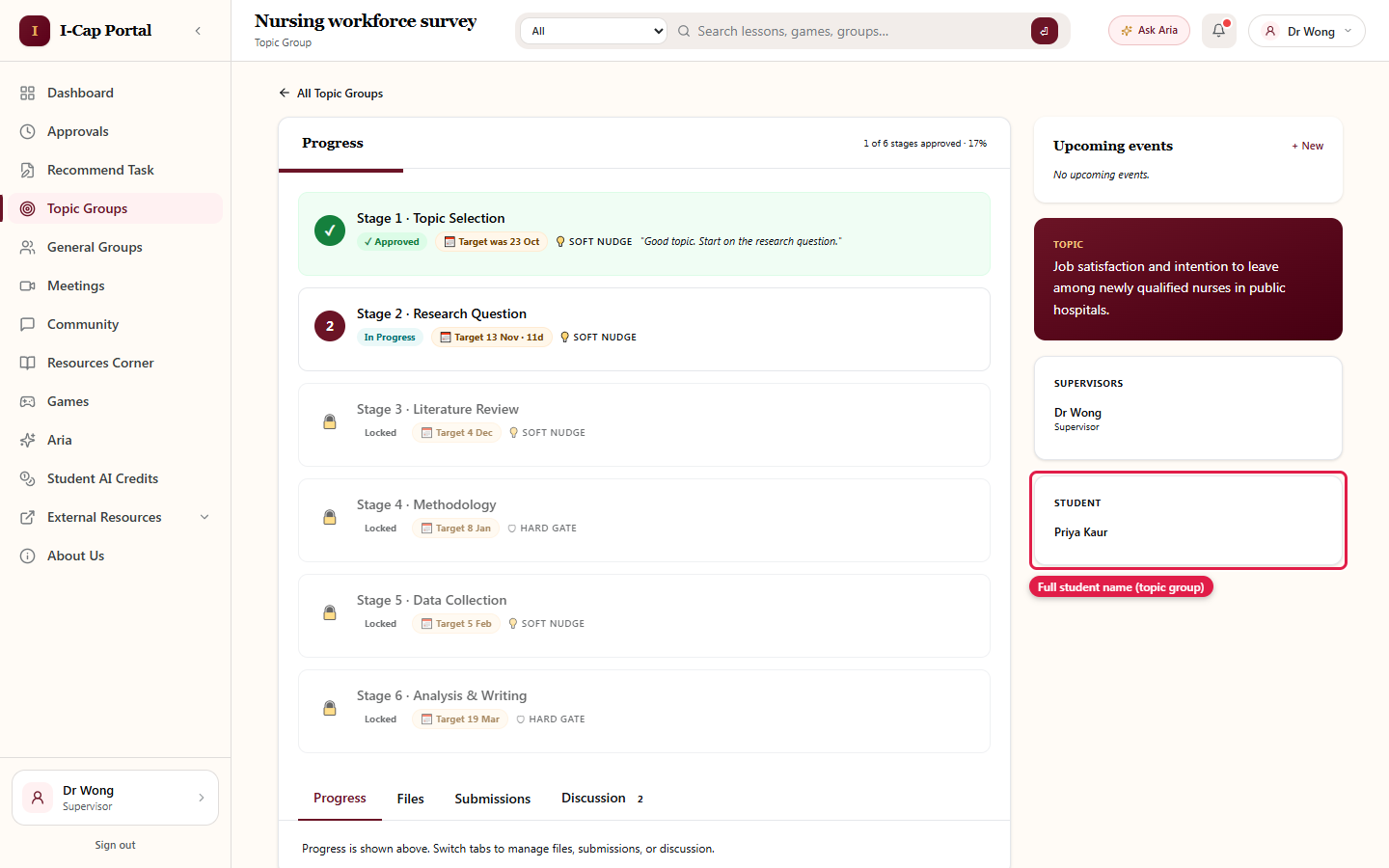
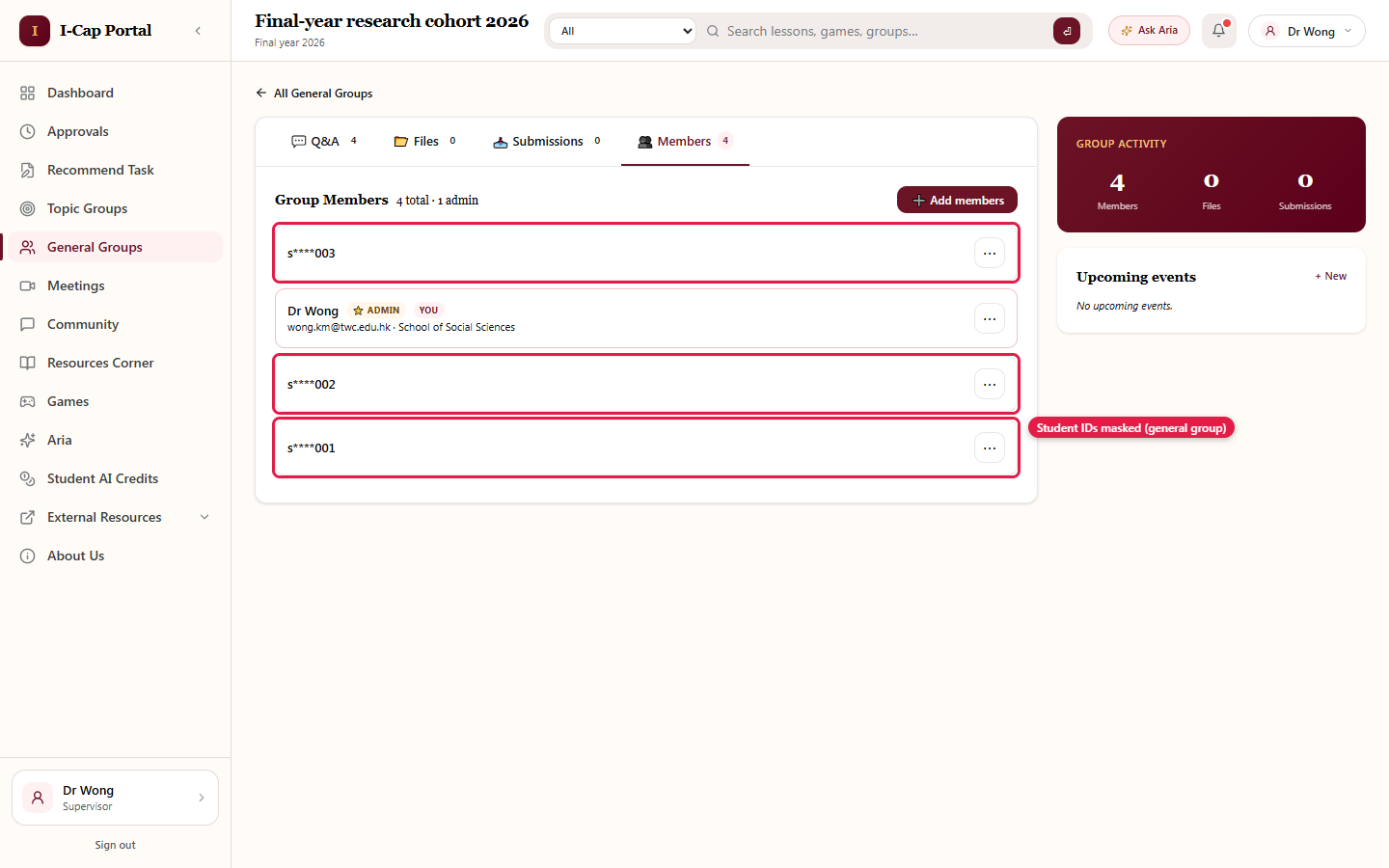
16. Who can see students' real names
What changed
- A lecturer sees full names only of their own students, and only in topic groups. Meetings and Approvals also show their own students' names.
- Everywhere else, including General Groups, Community and leaderboards, other students show as a masked ID, e.g. s****002.
- Admin sees all names.
How to test
- As a lecturer, open one of your topic groups.
- Then open a general group and Community.
Expected Full names in your topic group; masked IDs in the general group and Community.
Where: Topic Groups → a group, and General Groups → a group → Members
17. Lesson editor: "/" menu links any media Admin
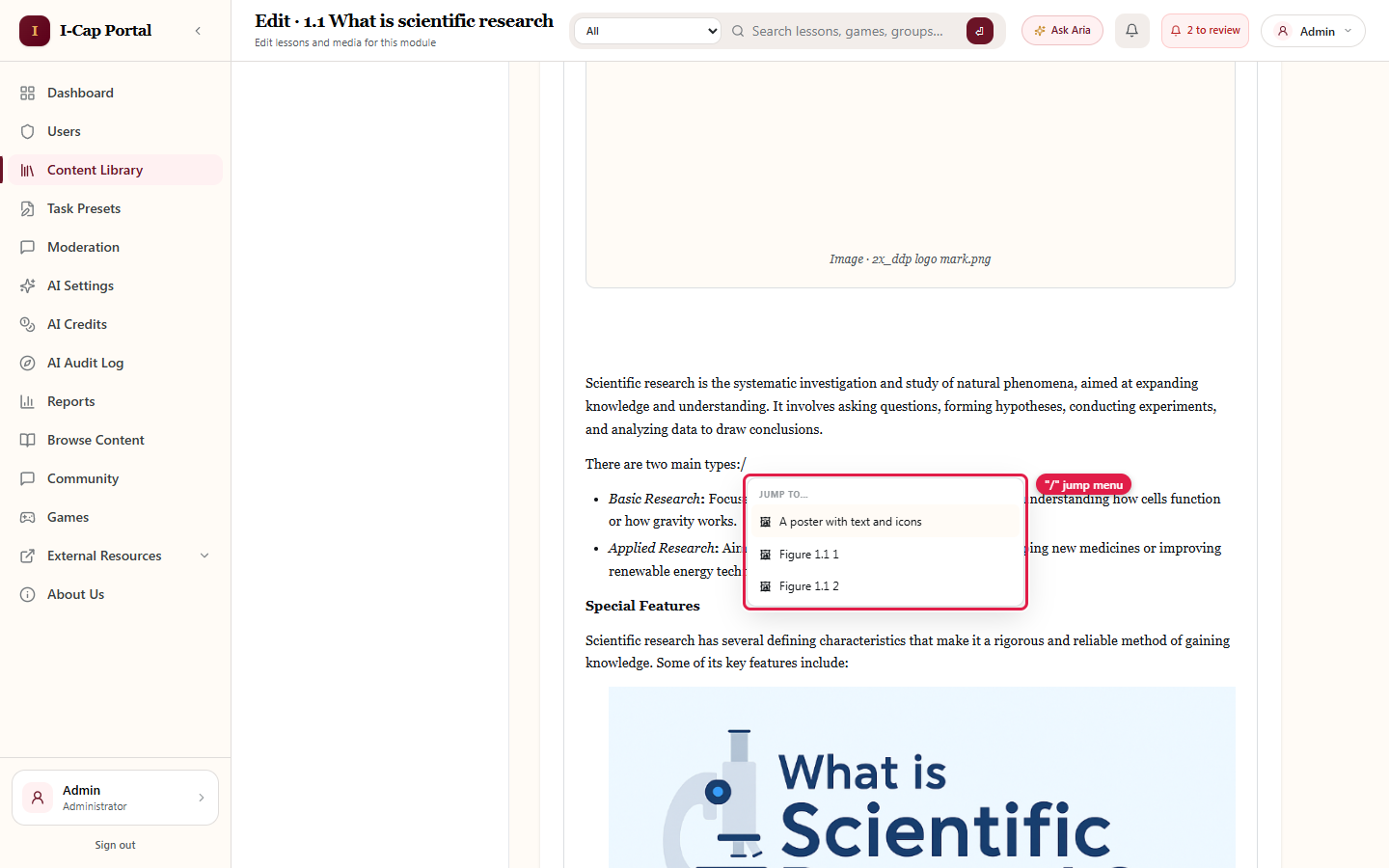
What changed In the lesson editor, typing / lets you insert any image or video from the lesson. Pasted media is uploaded automatically.
How to test Edit a lesson, type /, and choose a media item.
Expected The chosen media is inserted into the lesson.
Where: Admin → Content Library → a module → edit a lesson
Notes for testing
- Aria may fail on the first message after a quiet spell. The staging AI server sleeps after about 15 minutes idle, so the first message can show "AI service is temporarily unavailable". Wait about a minute and try again. This is a staging hosting limit, not a bug.
- The student account "Mei Chan" has test conversations in Aria History from our checks.